
A workbook with thirty tabs is a workbook where nobody can find anything. If you have ever right-clicked twelve tabs one after another just to tidy up a roster or a month-end report, you know the feeling. The good news is that you can hide multiple sheets in Google Sheets at once, and it takes about three seconds. The less good news is that getting them back is a different job, because Google Sheets still unhides one sheet per click.
This post covers the quick native way to hide several tabs, why unhiding is the slow part, and three ways to bring many sheets back at once, including a free add-on that also gives you an undo button. The screenshots come from a real test workbook, so what you see is what you get.
Table of Contents
The short answer
To hide several sheets, hold Ctrl (Cmd on a Mac) and click each tab you want, or hold Shift and click the first and last tab in a run. Right-click any highlighted tab and choose Hide sheets.
To unhide several sheets, there is no native bulk option. View › Hidden sheets lists them, and each click brings back one sheet. For two or three sheets that is fine. For twenty, use a short script or an add-on, both covered below.
How to hide multiple sheets in Google Sheets in one go
Google added multi-tab selection to Sheets in July 2021, and it is the part of this job that Sheets does well. Here is how it works.
- Click the first tab you want to hide.
- Hold Ctrl (Windows or ChromeOS) or Cmd (Mac) and click the other tabs. For tabs that sit next to each other, hold Shift and click the last one instead.
- Right-click any of the highlighted tabs.
- Choose Hide sheets.
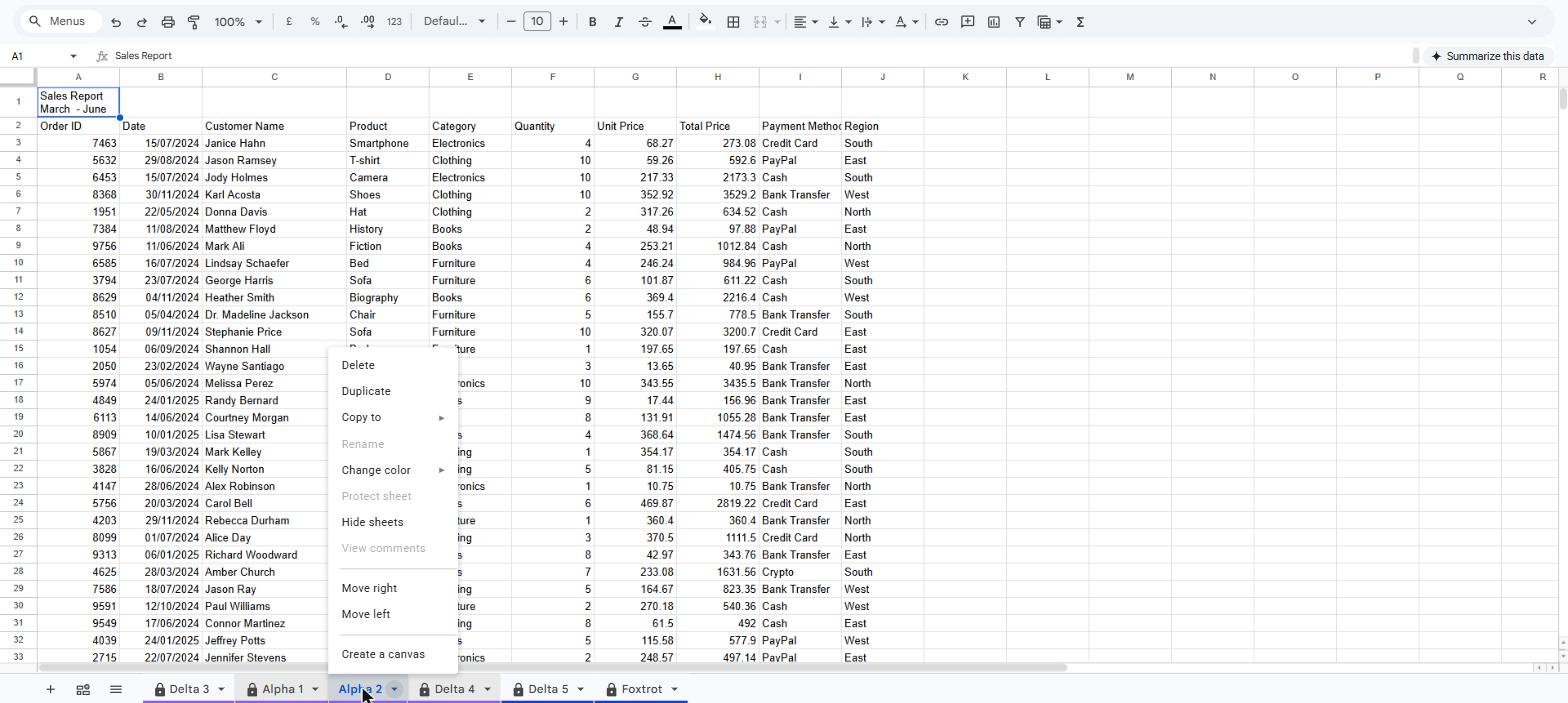
A few things to notice. The menu item changes from Hide sheet to Hide sheets once more than one tab is selected, so that is your sign the selection worked. Rename and Protect sheet go grey, because those only work on one tab at a time. The same selection also lets you delete, duplicate, colour or move the tabs together, which is handy when you are setting up a workbook.
One limit worth knowing: Google Sheets always keeps at least one tab visible. If you try to hide the only sheet left, the option is not there.
Why unhiding is the slow part
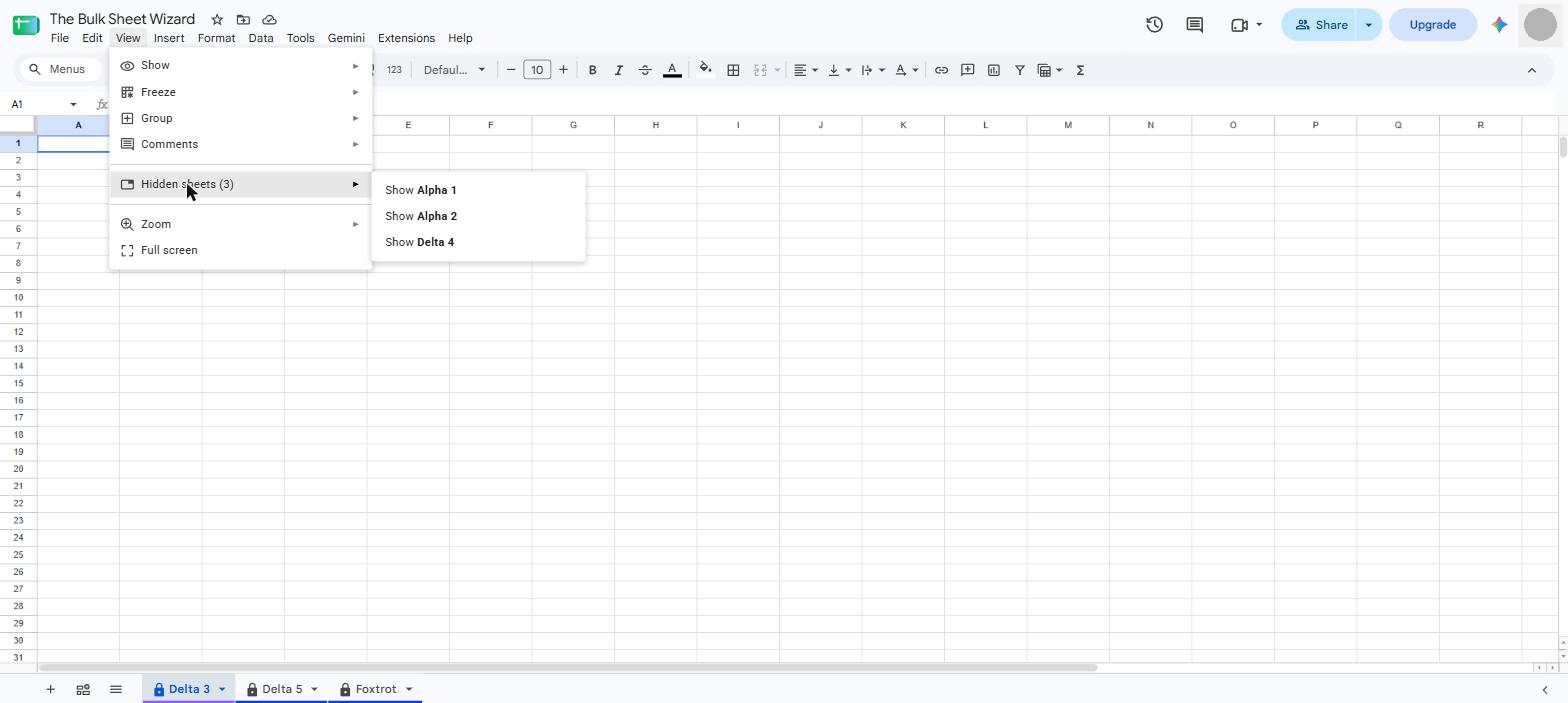
The moment you hide a sheet, a small message pops up: “Sheet hidden. Use the View menu to unhide sheets.” That menu is the whole story. Open View, hover over Hidden sheets, and you get a list with one line per sheet: Show Alpha 1, Show Alpha 2, Show Delta 4, and so on. Click one and the sheet comes back, the menu closes, and you start again from View.
There is a second route. The All Sheets button (the three-line icon at the bottom left, next to the plus) lists every tab, with hidden ones greyed out, and clicking a greyed one unhides it. Same result, same limit: one sheet per click.
So hiding twelve sheets takes three seconds. Unhiding twelve sheets takes twelve trips to the View menu and a small, quiet resentment.
Three ways to unhide multiple sheets at once
1. Click through the View menu
If you only hid a handful, just do the clicks. Nothing to install, nothing to authorise. It stops being fun somewhere around the fifth sheet, which is usually the point where people start searching for this post.
2. Run a short Apps Script
If you are comfortable pasting a little code, this works and costs nothing. Open Extensions › Apps Script, paste the function below into the editor, save, and run it. The first time you run it, Google will ask you to allow the script to edit your spreadsheet, which is normal for any script.
function unhideAllSheets() {
  var sheets = SpreadsheetApp.getActiveSpreadsheet().getSheets();
  for (var i = 0; i < sheets.length; i++) {
    if (sheets[i].isSheetHidden()) {
      sheets[i].showSheet();
    }
  }
}
The catches are real, though. It unhides everything, not the three you actually wanted. There is no undo, so if you had twenty sheets hidden on purpose, you are now hiding them again by hand. And a script like this lives inside one spreadsheet, so every workbook needs its own copy. I write a lot of Apps Script and I still would not want to paste this into every file I open.
3. Use The Bulk Sheet Wizard (hide and unhide are free)
This is the one I built, so read with that in mind. I wanted a list of tabs with checkboxes, which Sheets does not have, and The Bulk Sheet Wizard is that list, as a sidebar inside Google Sheets.
To unhide many sheets at once:
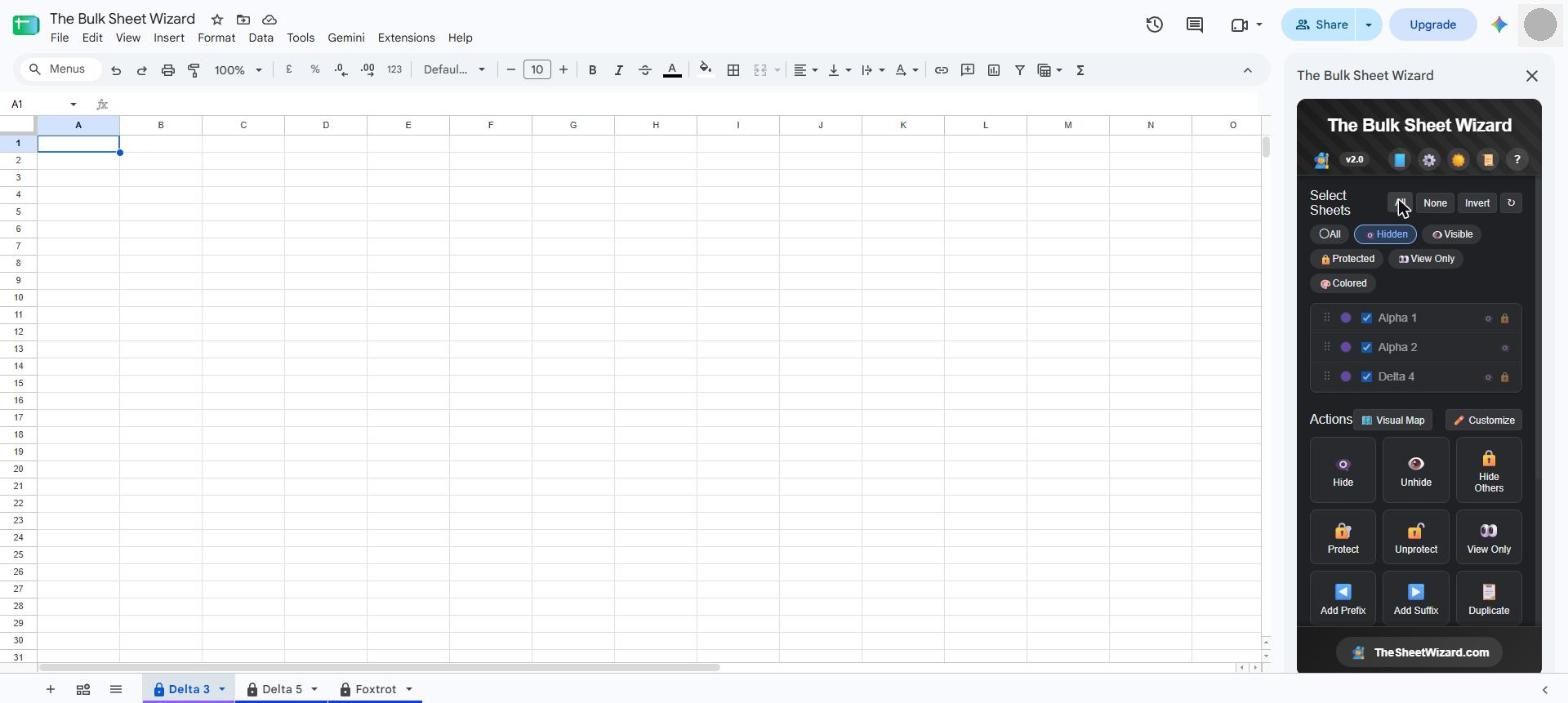
- Open Extensions › The Bulk Sheet Wizard › Open Sheet Wizard.
- Click the Hidden filter. The list now shows only your hidden sheets.
- Click All to tick them, or tick just the ones you want.
- Click Unhide.
Before anything changes, you get a preview that lists each sheet going from hidden to visible. Click Confirm and they are back. If that was the wrong set, Undo puts them back where they were.
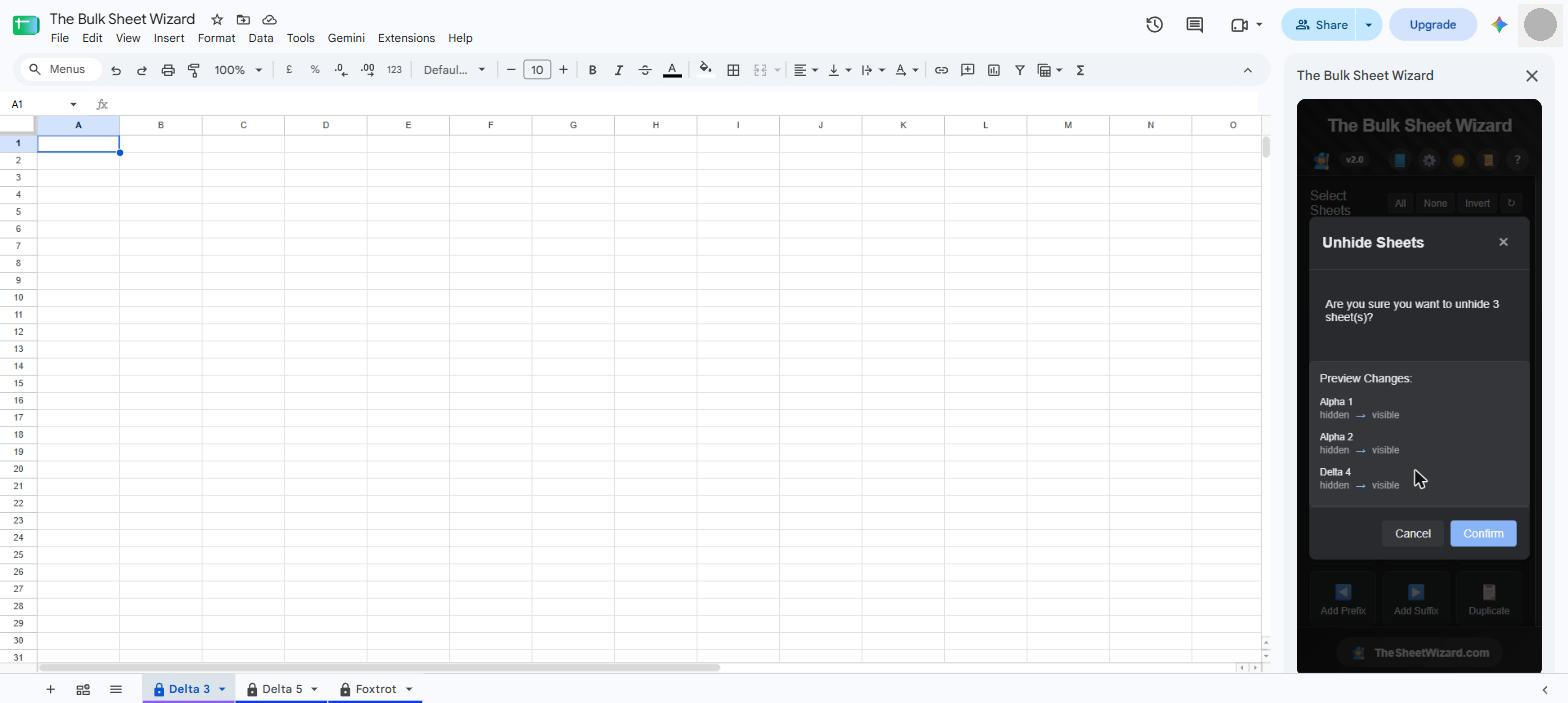
Hide, Unhide, Protect and Unprotect are free, and so is undo for those actions. You do not need a card or a trial to use any of them. If you get stuck, the Bulk Sheet Wizard help page walks through each button.
Hiding sheets in bulk, the tidier way
The same sidebar makes hiding easier too, mostly because of the filters. Filter by Visible, Coloured or Protected, tick what you want, and click Hide. Hide Others does the reverse: tick the one or two sheets you want to keep and everything else disappears, which is exactly what you want before sharing a summary with someone who does not need the workings.
The part that matters most is undo. Hide the wrong group with the native menu and you are back in View › Hidden sheets, guessing which ones you just hid. Hide the wrong group with the add-on and one click undoes that exact action, nothing more.
The paid side, for the sake of being clear about it: Premium adds bulk delete, rename, prefix and suffix, colour, duplicate, move, sort, merge, clear contents, view-only and text case, with undo and a full history. It is a 7-day free trial, then A$4.99 a month or A$29.99 a year. None of that is needed for anything in this post.
What hiding a sheet does not do
Hiding is tidying, not security. Anyone who can edit the spreadsheet can unhide a sheet in two clicks, and Google’s own help page notes that viewers can make a copy of the file and unhide sheets in the copy. If you need to keep data away from someone, put it in a separate file and share that file differently. Sheet protection stops edits, not eyes.
Formulas do not care whether a sheet is hidden. A SUM that points at a hidden tab keeps working, and so does any script that reads from it. Hidden sheets also still count towards the file’s size, so hiding twenty old tabs does not make the workbook lighter. Deleting them does, which is a job for another post.
Frequently asked questions
Can you hide multiple sheets in Google Sheets at once?
Yes. Hold Ctrl (Cmd on a Mac) or Shift, click the tabs you want, right-click one of them and choose Hide sheets. Google added this in July 2021, so if your menu only says Hide sheet, you have not selected more than one tab yet.
How do I unhide all sheets in Google Sheets at once?
There is no built-in button for it. View › Hidden sheets brings them back one at a time. To do the lot in one go, either run a short Apps Script that calls showSheet() on every hidden sheet, or use an add-on such as The Bulk Sheet Wizard, which lets you filter to hidden sheets, tick them and unhide with one click.
Why is Hide sheet greyed out?
Usually because it is the only visible sheet left. Google Sheets will not let you hide every tab in a file. If more than one sheet is visible and it is still grey, check that you have edit access, since viewers and commenters cannot hide sheets.
Does hiding a sheet stop other people from seeing it?
No. Editors can unhide it from the View menu, and viewers can copy the file and unhide it there. Treat hidden sheets as a way to reduce clutter, not as a way to keep something private.
Will hiding sheets break my formulas or scripts?
No. Formulas that reference a hidden sheet keep calculating, and Apps Script can still read and write hidden sheets. The only thing that changes is what people see in the tab bar.
Get the View menu out of your day
Hiding many sheets in Google Sheets is a solved problem. Unhiding them is not, unless you bring a script or a tool. If you deal with big workbooks more than once a week, install The Bulk Sheet Wizard from the Google Workspace Marketplace, open the sidebar, and try the Hidden filter on your messiest file. Hide, unhide and undo are free, and the View menu can go back to being a place you visit for freezing rows.