

Every month-end workbook I have ever cleaned up had the same shape: six tabs that matter and thirty that used to. Deleting the thirty is quick. Google Sheets lets you delete multiple sheets at once with a couple of clicks and one confirmation box. The reason this post exists is what happens after those clicks, because deleting is the one tab action that can quietly wreck a formula three sheets away, and the ways to get a deleted sheet back are not obvious.
So this covers the quick native way to delete several tabs, what it does to the formulas that pointed at them, three ways to bring deleted sheets back, and a way to delete with a preview and an undo button. The native steps and the recovery methods were run in a real workbook while writing, screenshots included.
Table of Contents
- The short answer
- How to delete multiple sheets in Google Sheets in one go
- What happens to formulas when you delete a sheet
- Three ways to get deleted sheets back
- Deleting sheets with a preview and an undo button
- A short script for “delete everything except”
- Frequently asked questions
- Delete with a safety net
The short answer
To delete several sheets, hold Ctrl (Cmd on a Mac) and click each tab, or hold Shift and click the first and last tab in a run. Right-click any highlighted tab, choose Delete, and click OK on the “Are you sure?” box.
To get them back, press Ctrl+Z straight away and all of them return, data included. If it is too late for that, File › Version history can roll the file back to before the delete. Both have a catch, covered below.
How to delete multiple sheets in Google Sheets in one go
Multi-tab selection arrived in July 2021 and it covers deleting, duplicating, copying, colouring, moving and hiding. Here is the delete version.
- Click the first tab you want gone.
- Hold Ctrl (Windows or ChromeOS) or Cmd (Mac) and click the others. For tabs that sit side by side, hold Shift and click the last one instead.
- Right-click any of the highlighted tabs.
- Choose Delete.
- A box titled “Heads up!” asks “Are you sure you want to delete 3 sheets?” with the real number in it. Click OK.
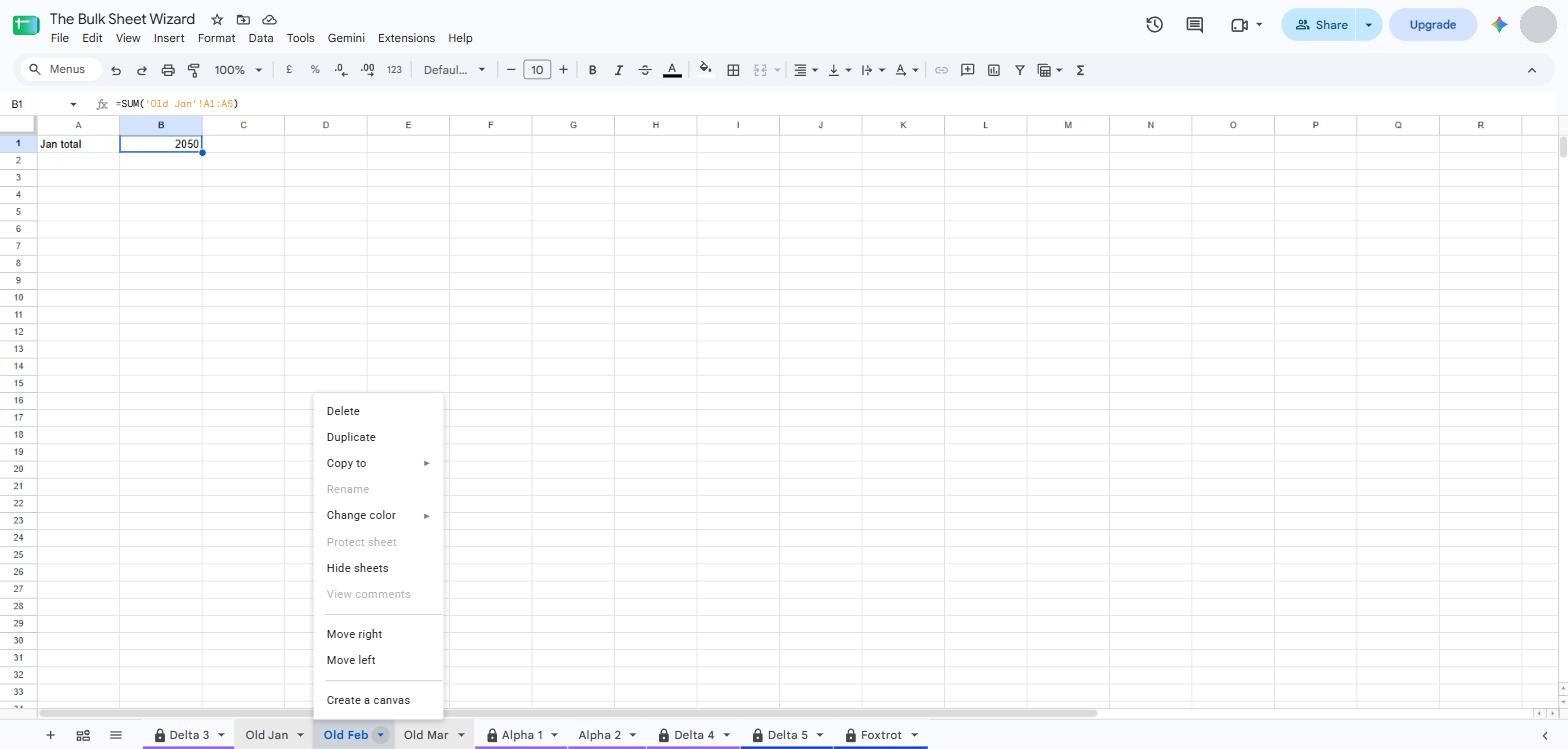
Two things to notice in the menu. Rename and Protect sheet go grey the moment more than one tab is selected, because those only work on one sheet at a time. Delete does not change its label the way Hide becomes Hide sheets, so the only sign you are about to delete three sheets rather than one is the number in the confirmation box. Read that number.
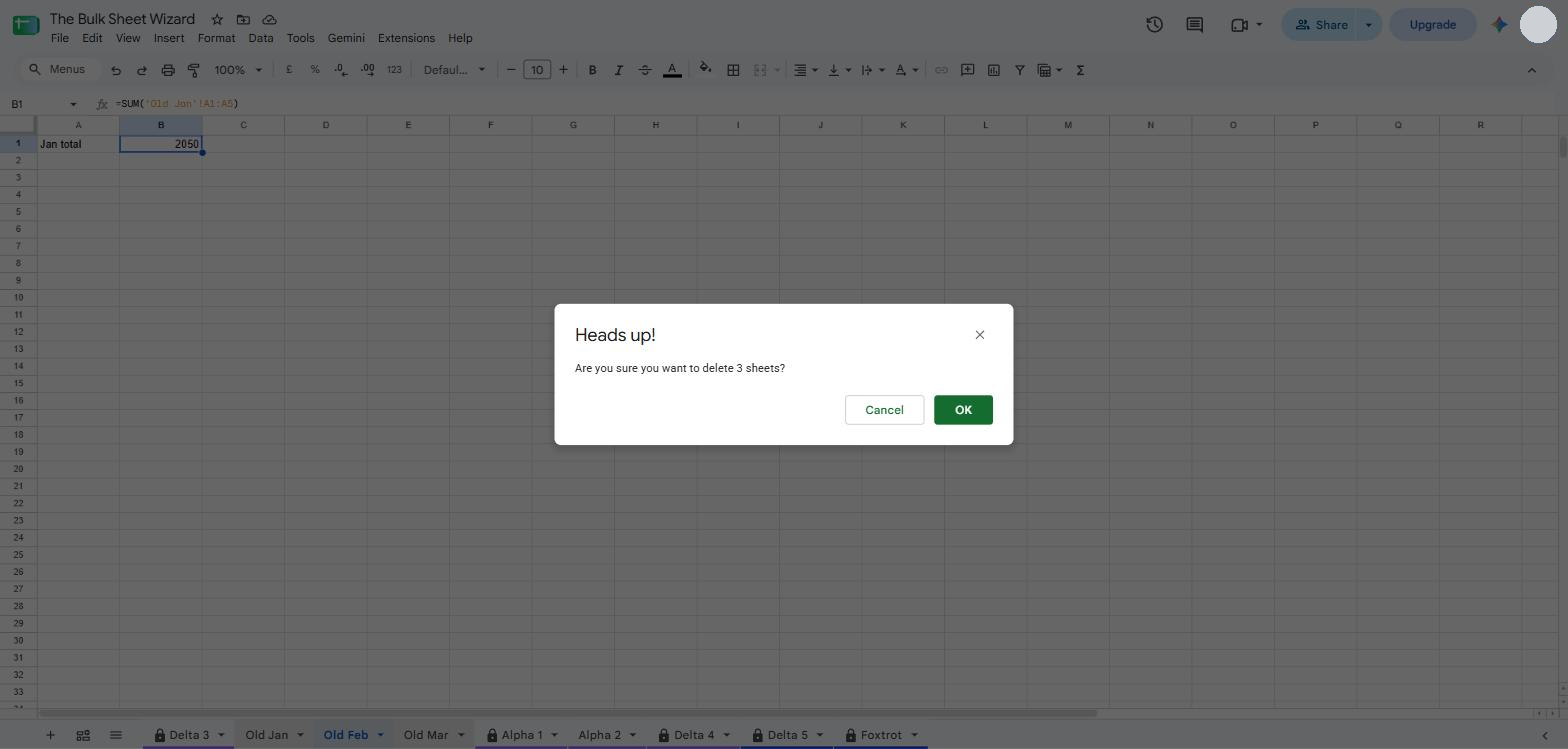
One limit: a spreadsheet always keeps at least one sheet. Select every tab and Delete, and Sheets will refuse. And if you are only tidying rather than clearing out, hide the tabs instead. Hidden sheets cost nothing and come back whole. I wrote up how to hide multiple sheets at once for that job.
What happens to formulas when you delete a sheet
Every formula that pointed at the deleted sheet turns into #REF!. Hover the cell and Sheets tells you why: “Unresolved sheet name ‘Old Jan'”. The formula text is still there in the formula bar, still pointing at a sheet that does not exist, so nothing recalculates until the sheet comes back or you rewrite the reference.
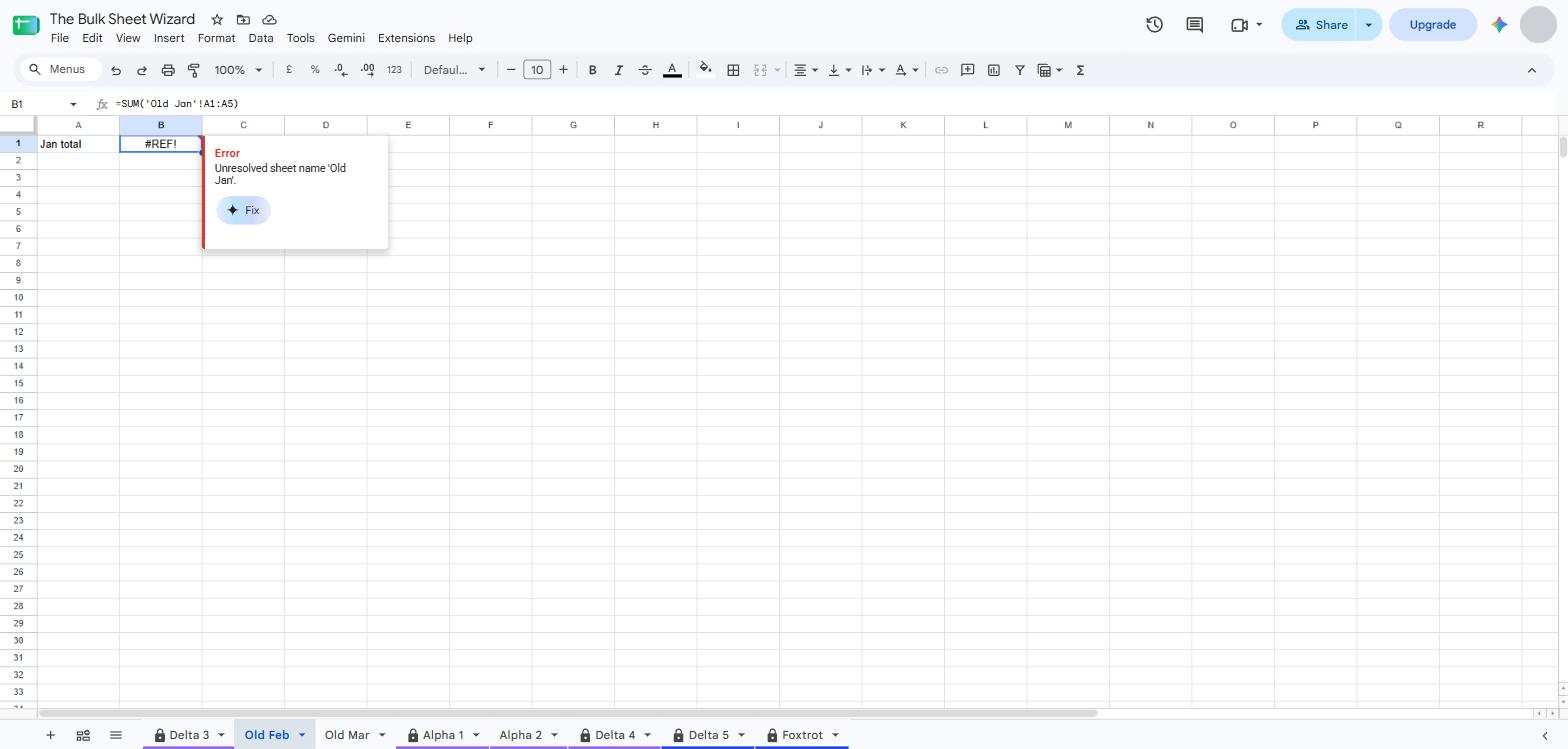
Sheets does not warn you about this before the delete. The confirmation box counts sheets, not references. So before you delete anything that has been in a workbook for a while, press Ctrl+H (Cmd+Shift+H on a Mac), set Search to “All sheets”, tick “Also search within formulas”, and search for the sheet’s name. If it shows up inside formulas on other tabs, you know what you are about to break.
Scripts are the same story. An Apps Script that reads from a sheet by name will throw an error the next time it runs after that sheet is gone.
Three ways to get deleted sheets back
1. Ctrl+Z, if you are quick
Google’s own undo works on sheet deletion. Press Ctrl+Z (Cmd+Z on a Mac) and the sheet comes back in its old position with its data, its formatting and its formulas. If you deleted three sheets in one go, one press brings all three back, because Sheets treats the multi-delete as a single action. I tested this while writing the post and the #REF! cell went back to showing its total the moment the sheet returned.
The catch is the word “quick”. Undo steps back through your recent actions in order, so if you have typed, sorted or pasted since the delete, you will undo those first, one at a time. And undo only lives in your current browser session. Close the tab, and that history is gone.
2. Version history, for anything older
File › Version history › See version history opens a list of saved points on the right. Click one from before the delete and the tab bar at the bottom shows the workbook as it was then, deleted sheets included. The blue “Restore this version” button at the top rolls the whole file back to that point.
That last part is the catch. Restore puts the entire workbook back to that moment, so any edits made after the delete, on any sheet, are rolled back with it. If people have kept working in the file, use the three-dot menu next to the version and choose “Make a copy” instead. That gives you a separate file as it was back then, and you can right-click the sheet you need in the copy, choose Copy to › Existing spreadsheet, and bring just that one sheet into the live file. Slower, but nothing else moves.
3. An undo button that keeps a backup
The third way is the one I built into The Bulk Sheet Wizard, so read this with that in mind. When you delete sheets through the add-on, it takes a copy of each one first and keeps the copies as hidden sheets inside the same workbook. Undo, in the add-on’s Operation History panel, puts the originals back from those copies. The backups stay until you clear them from the Extensions menu, so this one survives closing the tab and does not depend on being quick.
It has two limits, and they are stated on the listing rather than discovered later. Sheet protections and filter views are not carried back when a delete is undone, so those need setting up again on a restored sheet. And each action is capped at 25 sheets or 500,000 cells, which is a lot of sheet but not unlimited.
Deleting sheets with a preview and an undo button
The add-on is a sidebar that lists every tab in the workbook with a checkbox. That list is what makes bulk delete less nervy, because you pick from a list rather than from a crowded tab bar, and the filters do the finding.
- Open Extensions › The Bulk Sheet Wizard › Open Sheet Wizard.
- Use a filter if it helps. Hidden shows only hidden sheets, Coloured only the ones with a tab colour, and so on.
- Tick the sheets to delete, or click All.
- Click Delete. A preview lists every sheet about to go. Click Confirm.
- Changed your mind? Open Operation History (the scroll icon in the panel header) and click Undo.
One thing the sidebar can do that the tab bar cannot: delete hidden sheets without unhiding them first. Hidden tabs are not in the tab bar, so the native method needs each one unhidden before it can be selected. In the sidebar, click the Hidden filter, tick, delete.
Bulk delete is a Premium feature. Hide, unhide, protect and unprotect are free, and bulk delete, rename, prefix and suffix, colour, duplicate, move, sort, merge, clear contents, view-only and text case sit behind a 7-day free trial, then A$4.99 a month or A$29.99 a year. If you delete sheets once a year, the native method and Ctrl+Z are all you need. If you clear out workbooks every week, the preview and the backup are what you are paying for.
A short script for “delete everything except”
The other job people search for is keeping two sheets and deleting the rest, usually after an import lands forty tabs in a file. A few lines of Apps Script do it. Open Extensions › Apps Script, paste this, change the names in the keep list, save and run. Google will ask you to allow the script to edit the spreadsheet the first time, which is normal.
function deleteAllExcept() {
  var keep = ['Summary', 'Data'];
  var ss = SpreadsheetApp.getActiveSpreadsheet();
  var sheets = ss.getSheets();
  for (var i = 0; i < sheets.length; i++) {
    if (keep.indexOf(sheets[i].getName()) === -1) {
      ss.deleteSheet(sheets[i]);
    }
  }
}
Three catches, and they matter more here than they did for the unhide script in the last post. Ctrl+Z does not undo what a script did, so version history is your only way back. The names in the keep list must match the tab names exactly, spaces and capitals included, or the sheet you meant to keep is the first to go. And if the keep list matches nothing, the script stops with an error on the last sheet, because Sheets will not let a file end up empty. I write a lot of Apps Script and I still run this on a copy of the file first.
Frequently asked questions
Can you delete multiple sheets in Google Sheets at once?
Yes. Hold Ctrl (Cmd on a Mac) or Shift, click the tabs you want, right-click one of them and choose Delete. A box asks you to confirm and tells you how many sheets are about to go. This works in any Google Sheets file since July 2021.
How do I recover a deleted sheet in Google Sheets?
Press Ctrl+Z (Cmd+Z on a Mac) straight away and the sheet returns with its data. If you have done other things since, open File › Version history › See version history, pick a version from before the delete, and either restore it or make a copy of it and bring the sheet across. Restoring rolls back everything done since, so check what else changed first.
Why is Delete greyed out or refused?
Google Sheets keeps at least one sheet in every file, so it will not delete the last one. If more than one sheet exists and you still cannot delete, check your access: viewers and commenters cannot delete sheets, and a sheet protected by someone else may be locked to you.
Does deleting a sheet break formulas on other sheets?
Any formula that referenced the deleted sheet shows #REF! with the message “Unresolved sheet name”. The formula itself is not rewritten, so if the sheet comes back through undo or version history, the formula works again. Before deleting, use Ctrl+H with “Also search within formulas” ticked to find every formula that mentions the sheet.
How do I delete all sheets except one?
The tab bar way is Ctrl-click every sheet except the one you want to keep, then right-click and Delete. For a workbook with dozens of tabs, a short Apps Script with a keep list does it in one run, or an add-on such as The Bulk Sheet Wizard lets you click All, untick the keeper, and delete with a preview.
Delete with a safety net
Deleting sheets in bulk is easy. Deleting the right ones, and knowing you can get them back, is the part worth a minute of care: read the number in the confirmation box, search for the sheet name first, and know where undo and version history are before you need them. If you clear out big workbooks often, install The Bulk Sheet Wizard from the Google Workspace Marketplace and try the delete preview on the 7-day trial. The list, the filters and the backup are there so the thirty old tabs go and the six that matter stay.