
Most stocktakes end the same way: a tired evening, a clipboard full of numbers, and a spreadsheet that now says what you have. Then nothing changes, because the count never turns into an order. The shelf that was empty on Tuesday is empty again next Tuesday.
A stocktake in Google Sheets is worth doing only if it answers three questions: what do I have, what went missing, and what do I need to order this week. This post walks through a way to get all three from one spreadsheet. First the do-it-yourself version, with the formulas, then the shortcut I built after too many surprise empty shelves, which is an add-on called The Stock Wizard. Everything here comes from running counts in real shops, not from a template gallery.
Table of Contents
What a stocktake has to give you
A count that only tells you what is on the shelf is a photograph. Useful for a day, then out of date. The count earns its keep when it also tells you two more things.
First, what went missing, in money. If the sheet expected 12 candles and you found 9, that is three candles gone, and at cost price that is a number your accountant cares about. Write it down every time and you will see whether the same product keeps walking out of the door.
Second, what to order. The count gives you today’s stock. Your sales history gives you the speed things sell. Your supplier’s lead time gives you the delay. Put the three together and the reorder list writes itself. Most inventory templates for Google Sheets stop at the first question. This post is about the other two.
Set up the sheet before you count
You need three tabs before the first count, and it is worth an hour to get them right.
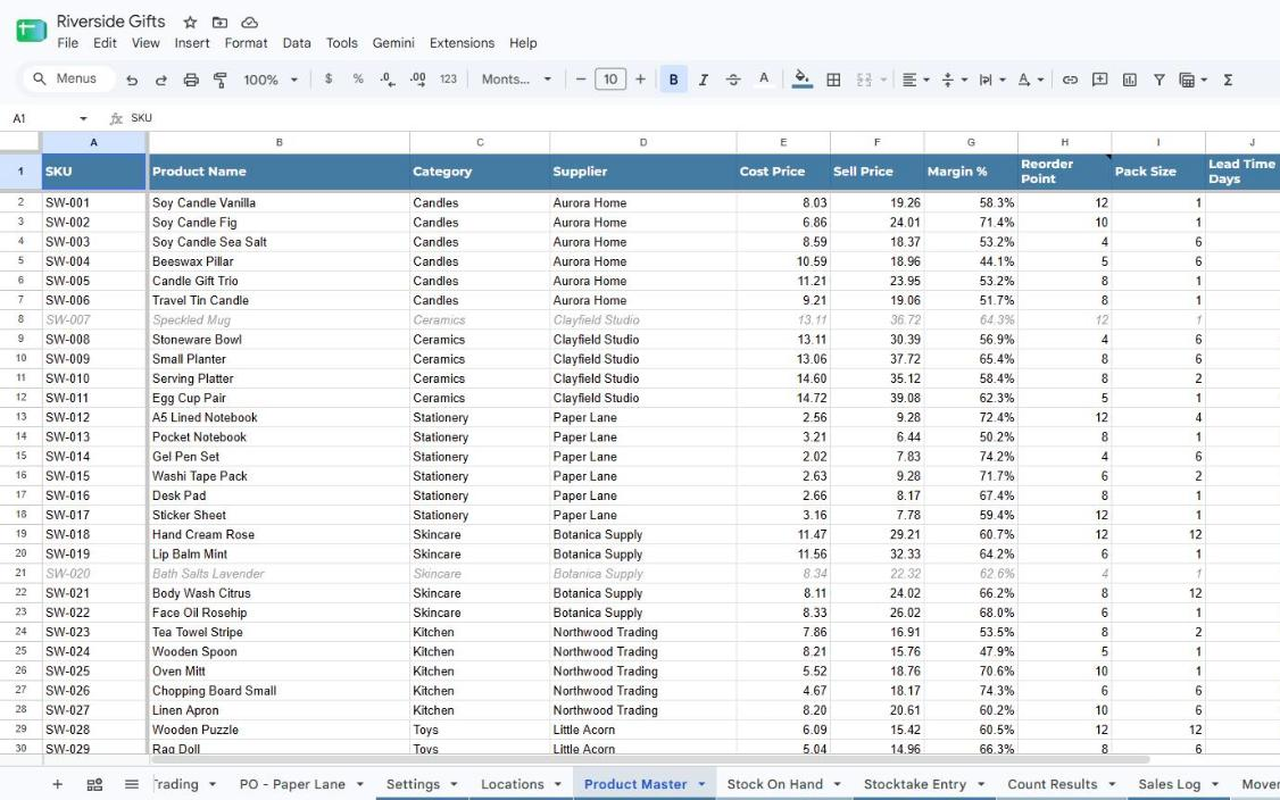
Products. One row per product. Give each one a short code of your own (that is all a SKU is), then the name, supplier, what you pay, what you charge, the pack size you can order in, and how many days the supplier takes to deliver. Spell the supplier the same way every time, because later you will group orders by that column.
Sales. One row per sale line: date, product code, quantity, and the shop if you have more than one. Most till systems export exactly this. The one rule that breaks more spreadsheets than any other: the dates must be real dates, not text. Select the column, set Format › Number › Date, and check the values sit against the right edge of the cell. Text sits on the left.
Count. One row per product, with the last counted quantity and the date you counted it. This is where the stocktake happens, and where the sheet works out what it expected to find.
The expected figure is the only formula you cannot skip. With the product code in A2, the last count in C2 and the last count date in D2, and a Deliveries tab laid out as date, code, quantity:
=C2
 + SUMIFS(Deliveries!C:C, Deliveries!B:B, A2, Deliveries!A:A, ">"&D2)
 - SUMIFS(Sales!C:C, Sales!B:B, A2, Sales!A:A, ">"&D2)
Last count, plus everything delivered since, minus everything sold since. That is the whole idea of stock control in one line, and every other number in this post hangs off it.
How to do the stocktake itself
Here is the method. It works on paper, in a plain sheet, or in the add-on, because the rules are the same.
Count one section at a time. One supplier’s shelf, or one category, on one evening. A whole-shop count is where mistakes creep in, and it is the reason most shops count once a year instead of once a month. Six products counted well beat sixty counted badly.
Type what you see, not what you expect. Put the expected figure in a column next to the count, and a third column for the difference. Conditional formatting that turns the row red when the count is lower and green when it is higher makes the problems jump out while you are still standing in front of the shelf, which is the only time you can check them cheaply.
A blank is not a zero. This is the rule that makes partial counts safe. If you did not count a product tonight, leave its cell empty and it keeps the figure it had. Only type 0 when you looked and there were none. Templates that treat blank as zero will wipe your stock figure for every product you skipped, which is how a monthly count turns into a monthly disaster.
Recount only what did not match. When the count disagrees with the sheet, do not trust either number yet. List just the products that were out and count them again. If the recount says the same thing, the stock really is missing. If it says something different, the first count was the mistake. A forty product count usually becomes a three product recount.
Write the differences down in money. Difference times cost price, on a tab you never clear. That tab becomes your shrinkage record. Sort it by product and you can see whether the same item keeps disappearing. Sort it by date and you can compare this month with last.
Finish the count on purpose. When you are happy, the counted figures become the new starting point, and the count date moves to today. Until you do that, nothing has changed, which means a half-finished count you abandon at 9pm does no harm.
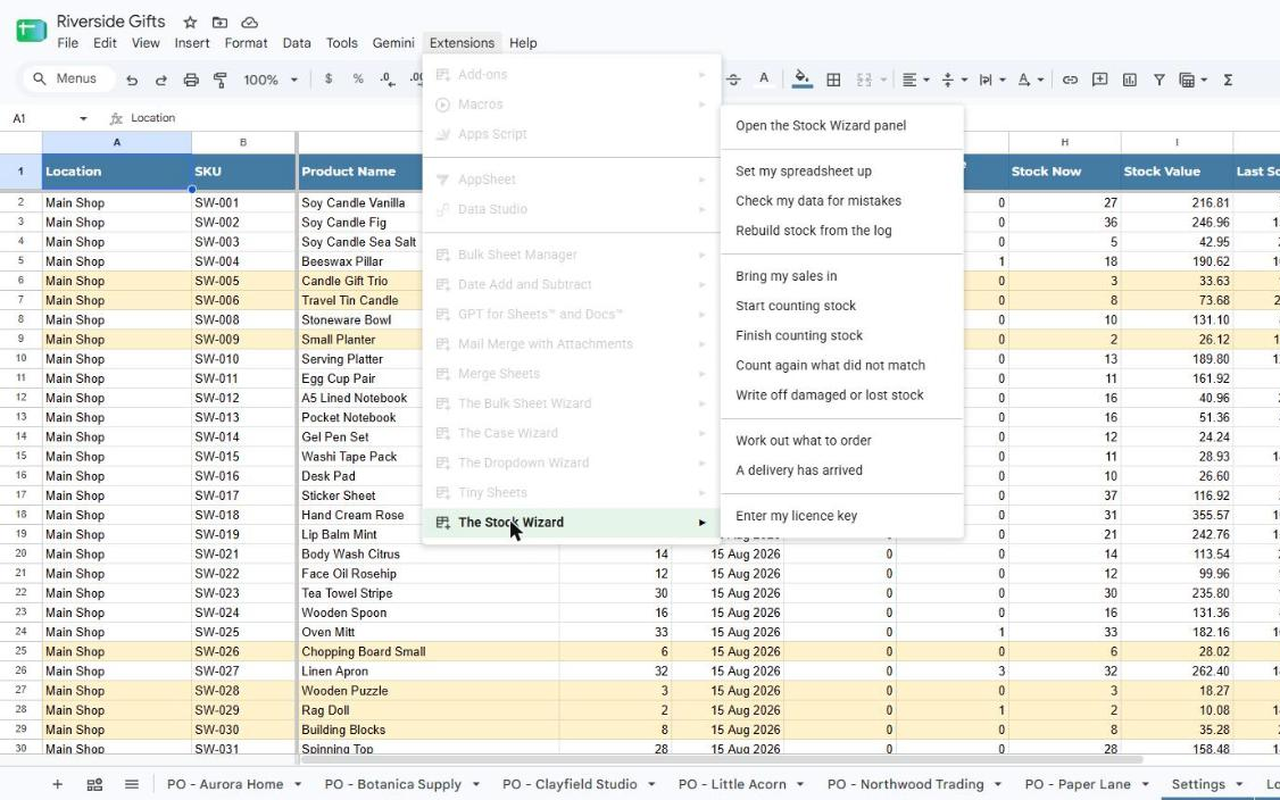
In The Stock Wizard this whole sequence is three menu items under Extensions › The Stock Wizard: Start counting stock, Finish counting stock, and Count again what did not match. The Stocktake Entry tab shows the expected figure and the difference live while you type, the blank-means-carry-forward rule is built in, and every line that did not match goes to a Count Results tab, in money, permanently.
Turn the count into a reorder list
Now the part most stocktakes never reach. You need three numbers per product.
How fast it sells. Average daily sales over a recent window. Eight weeks is a fair default for a small shop; shorter if your range changes often. With sales in a Sales tab (date in A, code in B, quantity in C):
=SUMIFS(Sales!C:C, Sales!B:B, A2, Sales!A:A, ">="&TODAY()-56) / 56When to order. The reorder point is the stock level at which you must order or you will run out before the delivery lands. The standard version is daily sales times lead time in days, plus a safety buffer. About half a week of sales is a sensible buffer to start with.
=ROUNDUP(E2 * F2 + G2, 0)where E2 is daily sales, F2 is lead time in days and G2 is safety stock.
How much to order. Decide how many days of cover you want between orders, say 14, and order up to that level, rounded up to the pack size. With stock on hand in H2, the reorder point in I2, the pack size in J2 and a target of daily sales times (lead time plus 14) plus safety in K2:
=IF(H2 <= I2, CEILING(MAX(0, K2 - H2), J2), 0)Anything above zero goes on the order. Sort by supplier and you have one order per supplier, which is what they want to receive anyway.
Two habits stop this going wrong. Check the products the maths is unsure about, such as anything you have never counted or anything with no sales in eight weeks, before you order more of it. And accept that the first few weeks will lean on your gut, because the averages need a few weeks of real sales before they mean much. Fill in a reorder point by hand for anything important on day one.
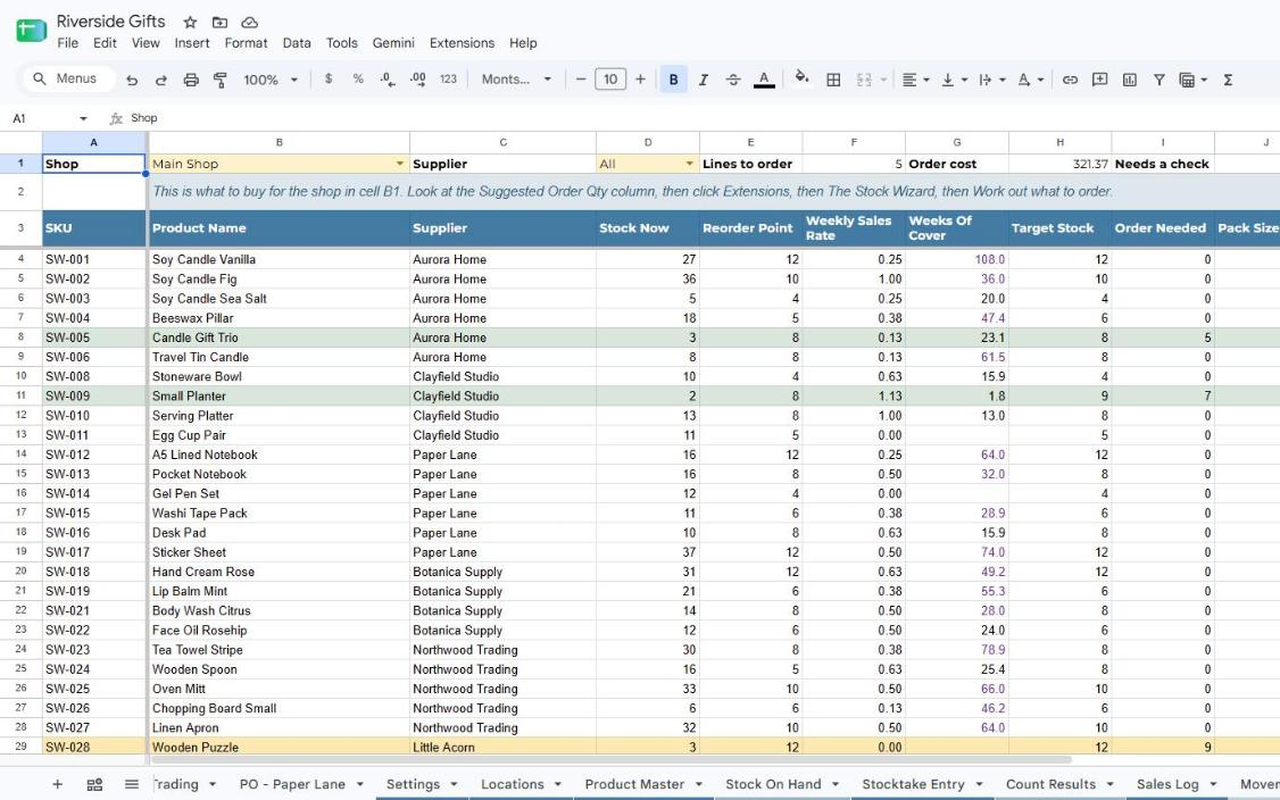
The Stock Wizard does this arithmetic on an Order Builder tab, one shop at a time, from your own Sales Log, pack sizes, lead times and safety stock. Work out what to order then writes one purchase order tab per supplier, with quantities per shop, costs and a total, and a Check column that repeats any warnings. You print it or paste it into your own email. The add-on itself sends nothing.
Where a plain spreadsheet starts to hurt
I ran a version of the do-it-yourself sheet for a long time, and it works. It also breaks in the same four places every time.
Somebody types over the stock figure, and now the formula is gone and nobody knows. A delivery gets entered twice, or a till export gets pasted twice, and the numbers drift. Nobody remembers what the stock was last month, because the count cells were overwritten. And the recount, the shrinkage record and the order list are three separate jobs that each need someone to remember them.
The fix is the same one accountants have used for a few hundred years: never edit the balance, only add to the ledger. Every count, sale, delivery and write-off becomes a line in a log, and the stock figure is just that log added up. Type over the stock tab and the next update redraws it from the log. Paste the same sales twice and the second copy is ignored. Doubt a number and one click rebuilds every figure from the log.
That ledger is what The Stock Wizard is underneath. On top of it sits a side panel that shows money in stock, lines to order and a Do This Next card that picks the one most useful job: a count that found something missing, a shop overdue for counting, or an order that is due. Write-offs for the box you dropped, deliveries received without double counting, a dashboard with stock value, margin, top sellers and dead stock, and a data health check that reads everything and changes nothing.
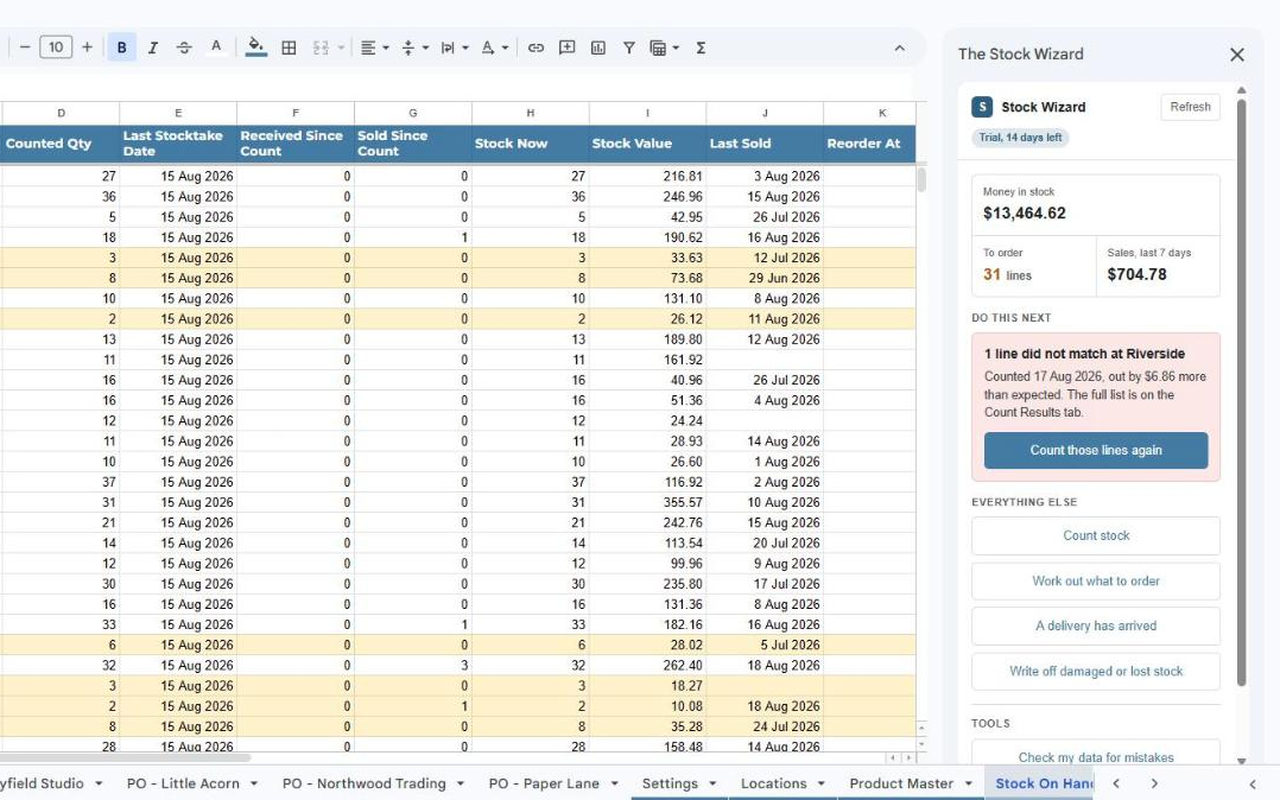
The honest limits, because I would rather you knew before you count: it runs on a laptop or a tablet in a browser, since the Google Sheets phone apps do not show add-on menus or panels. Purchase orders are tabs, not emails. And it only touches the spreadsheet it is installed in, with no calls to any outside service, so your products, sales and counts stay in your own Google account.
Everything is unlocked for fifteen days from first use, with no card. After that a licence is A$9 a month or A$89 a year for one shop, and A$19 a month or A$179 a year for up to five shops, in Australian dollars including GST.
Frequently asked questions
How often should a small shop do a stocktake?
Count a section every week or two rather than the whole shop once a year. Rotating through suppliers or categories keeps each count short, catches missing stock while it is still explainable, and keeps the expected figures honest. A full count is still worth doing before your accountant needs a stock value.
Can I do a stocktake in Google Sheets on my phone?
You can type numbers into a sheet on the phone app, but add-on menus and side panels do not appear there. If you want the live expected-versus-counted view, use a laptop or a tablet in a browser. Many shops count on paper and type it in afterwards, which also works.
What is a reorder point, in plain words?
The stock level at which you must order today to avoid running out before the delivery arrives. Daily sales times supplier lead time, plus a small buffer. If you sell two a day and the supplier takes five days, your reorder point is at least ten.
What if my count does not match the spreadsheet?
Recount only the products that were out. If the recount agrees with the first count, the stock is really gone, so record the difference in money and move on. If the recount gives a different number, the first count was the error and the recount fixes it. Never write off stock that a count has already corrected, or you subtract the same loss twice.
Do I need sales history before the reorder list is useful?
A few weeks of it. Until then the daily sales average is guesswork, so set a reorder point by hand for anything you cannot afford to run out of, and let the averages take over as the Sales Log fills up.
Count one shelf this week
The count is not the goal. The order is. Pick one supplier’s shelf, count it against what the sheet expected, write down the difference in money, and turn the result into that supplier’s order. Once that loop works for one shelf, the rest of the shop is just repetition.
If you would rather have the expected figures, the recount, the shrinkage record and the supplier orders handled for you, install The Stock Wizard from the Google Workspace Marketplace, run Set my spreadsheet up, and count one shelf tonight. Fifteen days free, no card, and the Stock Wizard help page walks through every button.